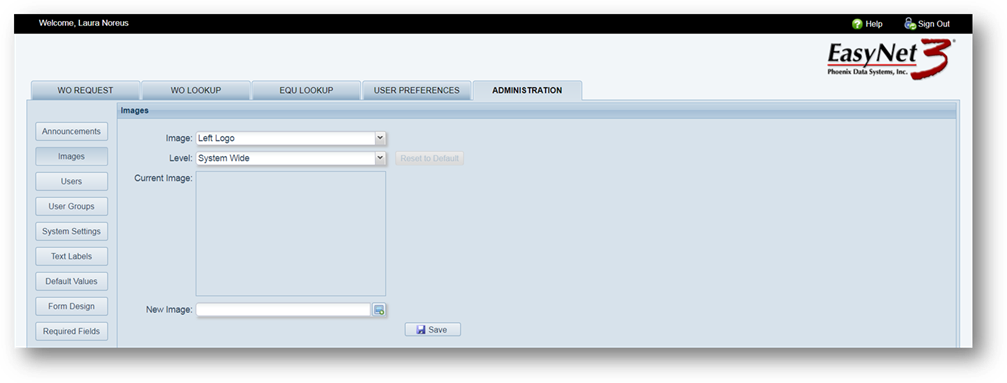
Add your logo to EasyNet 3 screens and/or add an image to the login screen.
1. Click on the Images button.
2. Image – Select from the list.
•Left logo, right logo or Login image
3. Level – Select where the image or logo will display.
4. Current Image – Displays the current image based on the above selections.
5. New Image – Use Windows conventions to browse for a new image or logo.
6. Save [Button] – Click on the button to save the image or logo.
7. Reset to Default [Button] – Click on the button to return the selected logo back to the factory default.